

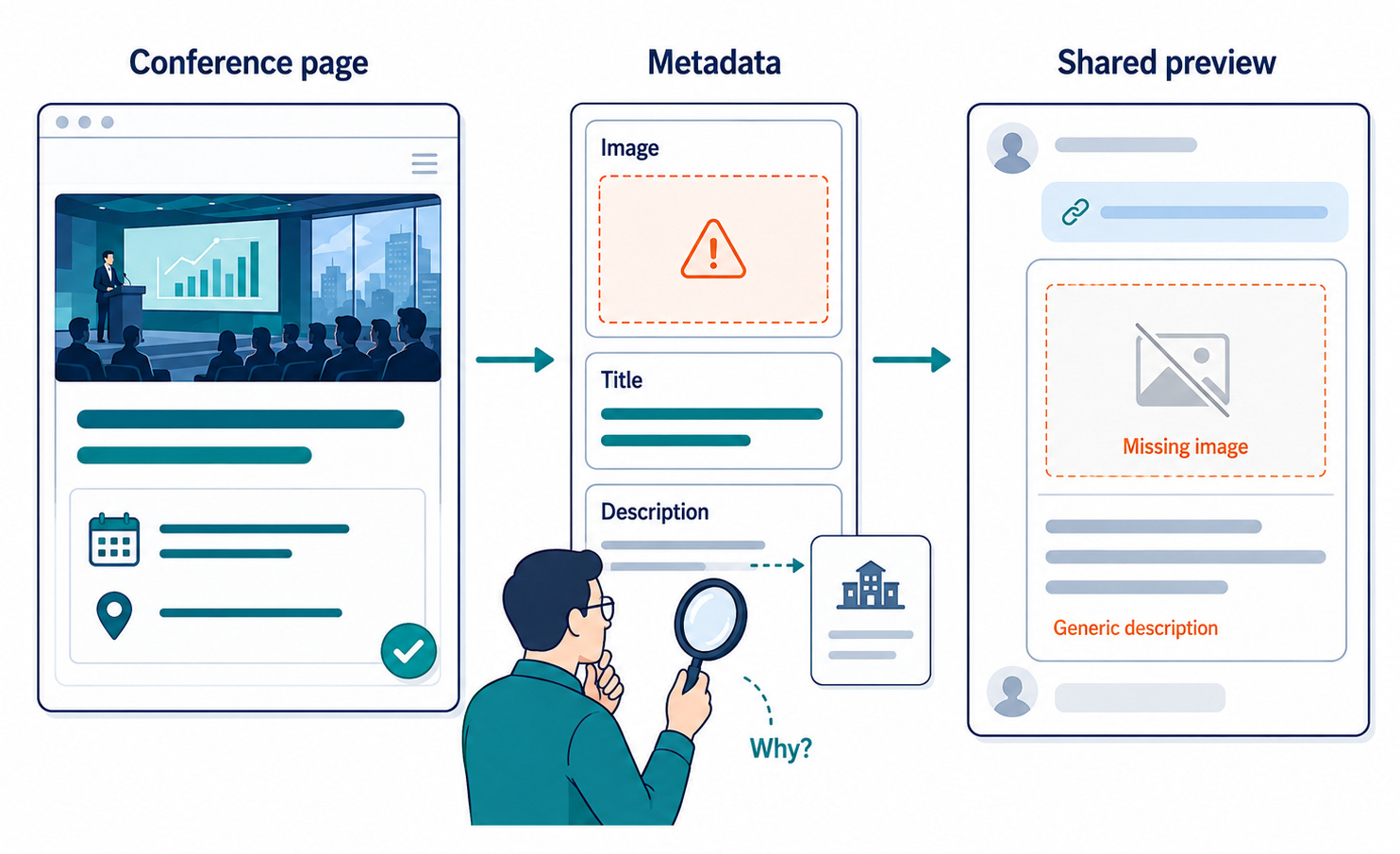
I shared a hyperlink in a Slack channel recently. I was disappointed when I saw the way the page link preview displayed there. The web page I shared the link to pointed to a conference website that contained a promo image and details about the event. The Slack preview didn’t contain any image, and the accompanying text was about the organization hosting the event, not about the conference, as one might expect.
Chances are good you’ve seen this behavior before. And, if you’re like me, you might not know why.
Where Web Previews Come From
The visualization that platforms like Slack, Facebook, and BlueSky generate when you paste a hyperlink is supposed to contain the same info humans see when they visit the page the link points to. Looking into why that doesn’t always occur led me to a separate layer of metadata in a page’s <head>, and to a specification called the Open Graph protocol.
Introduced by Facebook in 2010, Open Graph provides a universal format for web publishers to control precisely how their URLs and website content are displayed when shared across social networks and messaging platforms. It gives web publishers a way to specify a title, description, image, and other info that platforms can use to determine what content will display in a link preview.
What Was Broken
In the Slack example, the image was the first thing I noticed missing. No event photo appeared in the card, the way it did on the web page I visited. The copy didn’t discuss the conference. Instead, it showed a description of the event production company.
The headline was accurate. It displayed the conference name and dates, but the rest of the content was a mismatch.
One Possible Explanation
The site’s template may explain it. When page-level Open Graph values aren’t supplied, a web page preview may fall back to the site-wide default, producing generic copy about the organization that owns the site, instead of anything specific to the event they were promoting.
An Assumption That Needs Some Scrutiny
Increasingly, web-based documentation includes a share button to help users easily distribute our content to others. When someone clicks the share button they likely assume the shared link will display the content correctly wherever it lands.
But, that assumption doesn’t always hold true.
Tech writers typically check published output in the channels we control.
A PDF user manual gets reviewed as a PDF file.
Our help site gets checked for the experience users will have when they access that information using a web browser.
Shared link previews, on the other hand, are seldom discussed in tech comm circles and aren’t commonly included in pre-deployment review. That needs to change because they impact the customer experience. Link previews deserve scrutiny and to become part of our publication workflow quality control process.
The “Big Three” Tags For Writers
While there are dozens of Open Graph tags covering everything from video durations (video:duration) to property types (og:type), tech writers need to pay attention to three fundamental properties.
Here is what they look like in the markup, and how to approach writing them.
1. The Title (og:title)
This is HTML markup that controls the bold headline of your preview card.
<meta property="og:title" content="How to Generate an API OAuth Token" />
While it is tempting to just map this directly to your <title> or <h1> tag, your og:title should be optimized for standalone context. A page in your doc portal site might be titled “OAuth Tokens” because it lives under an “Authentication” breadcrumb. But stripped of that breadcrumb in a Slack channel, “OAuth Tokens” is vague. Your og:title should be descriptive and independent.
2. The Description (og:description)
This is the one-to-two sentence summary that appears below the title.
<meta property=”og:description” content=”Learn how to generate, secure, and refresh 0Auth tokens for the v2 REST API.” />
Unlike a traditional SEO meta description (which is written to for search engine algorithms), an og:description is a direct pitch to a human being in a chat window. Keep it punchy and action-oriented. Aim for under 100 characters to ensure it doesn’t get truncated on mobile devices or smaller chat windows. Do not just let your site generator pull the first paragraph of your page—that often results in awkwardly cut-off sentences or code snippets being displayed as text.
3. The Image (og:image)
This points to the image file that will serve as the banner for your preview card.
<meta property=”og:image” content=”https://docs.yourcompnayname.com/images.ogoauth.png” />
This approach requires a bit of collaboration with your design or frontend web team, but the content strategy belongs to you. Don’t settle for a generic company logo image across all 5,000 pages of your documentation. Advocate for a dynamic image generation system, or create standard, topic-specific banners (e.g., a specific banner for “Tutorials,” another for “Reference,” and another for “Release Notes”).
Testing Your Link Preview Metadata
We don’t have to wait until a page is pushed to see how our Open Graph tags perform. Once our markup is staged, we can use one of several free validators to preview how our content will look:
opengraph.xyz: A great all-in-one tool that shows how our link will render across Slack, Discord, LinkedIn, and Facebook simultaneously.
LinkedIn Post Inspector: Excellent for verifying that our business-critical docs are caching correctly on professional networks.
Take Ownership Of Documentation Previews
As tech writers, we often advocate for improvements in customer experience. We meticulously structure our docs, use markdown or DITA to ensure information is accessible, accurate, and scannable.
Taking control of Open Graph metadata extends our advocacy one step further. By treating og:title and og:description as distinct, valuable content types, we can help ensure that the quality of our documentation experience is up to par regardless of where consumers encounter it. 🤠